› How to add annotations (highlight, note, bookmark) in the book?
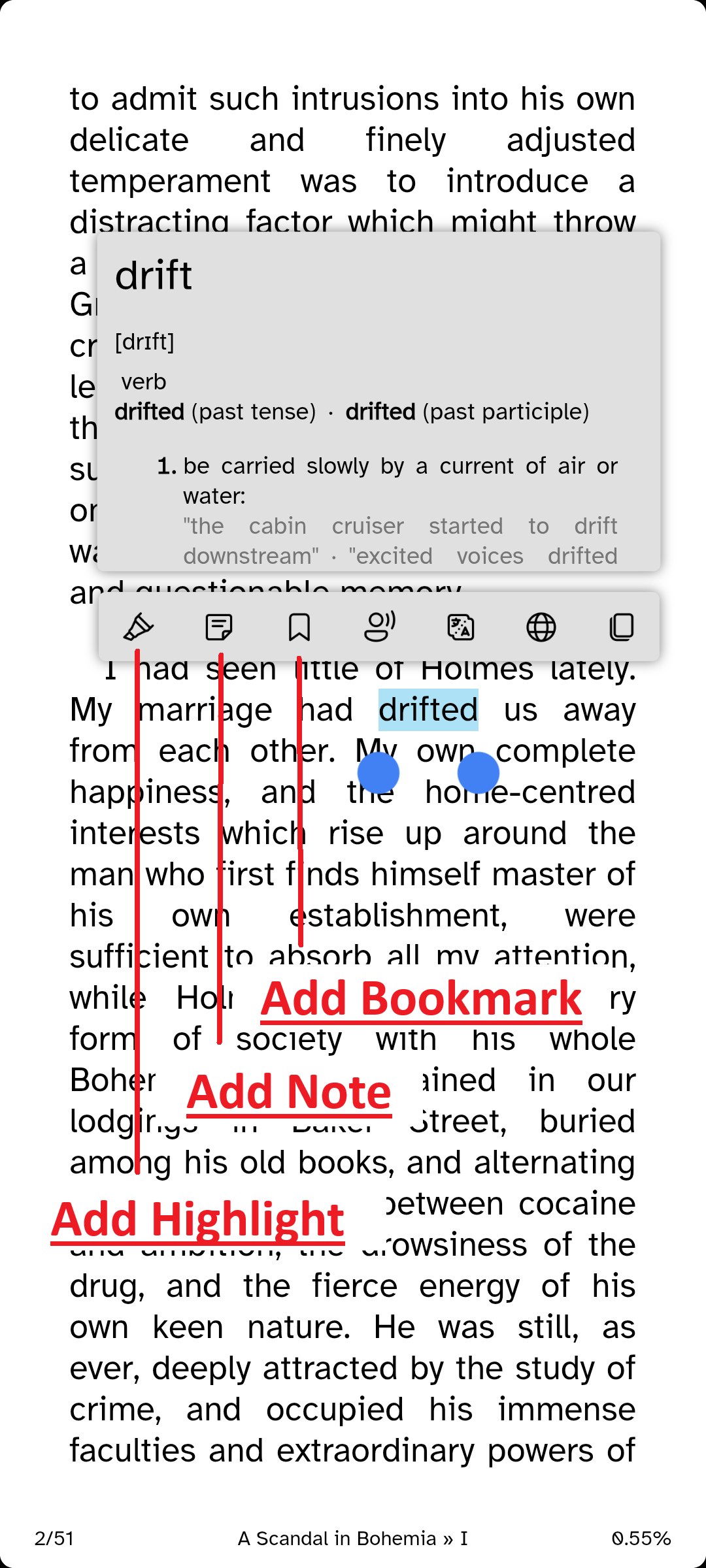
Once in the Reader, long press any word to open context menu with dictionary. Once the context menu is open, follow the steps to add annotations:
Tap on the center of the screen to bring the reader controls, then tap the desired icon to view the highlights, notes or bookmarks on the book.
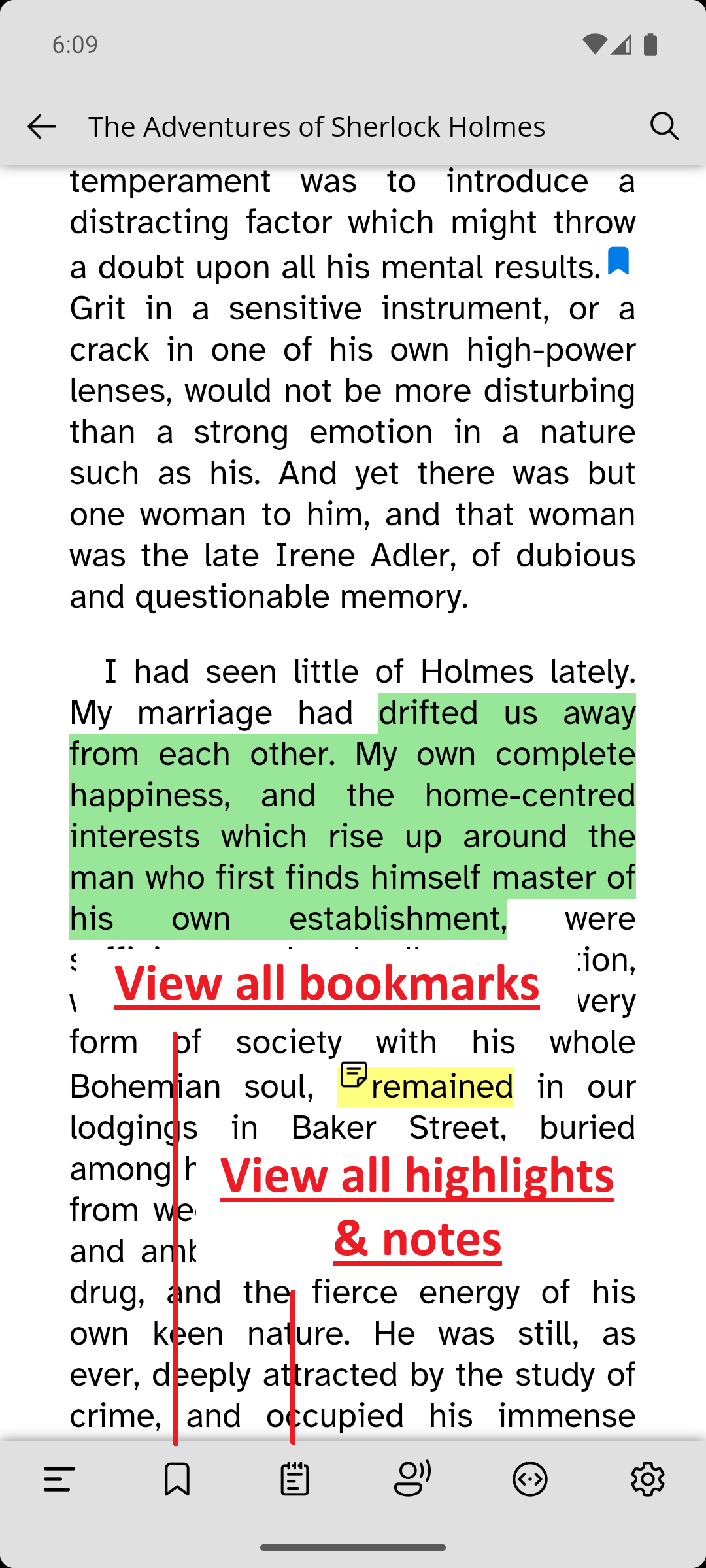
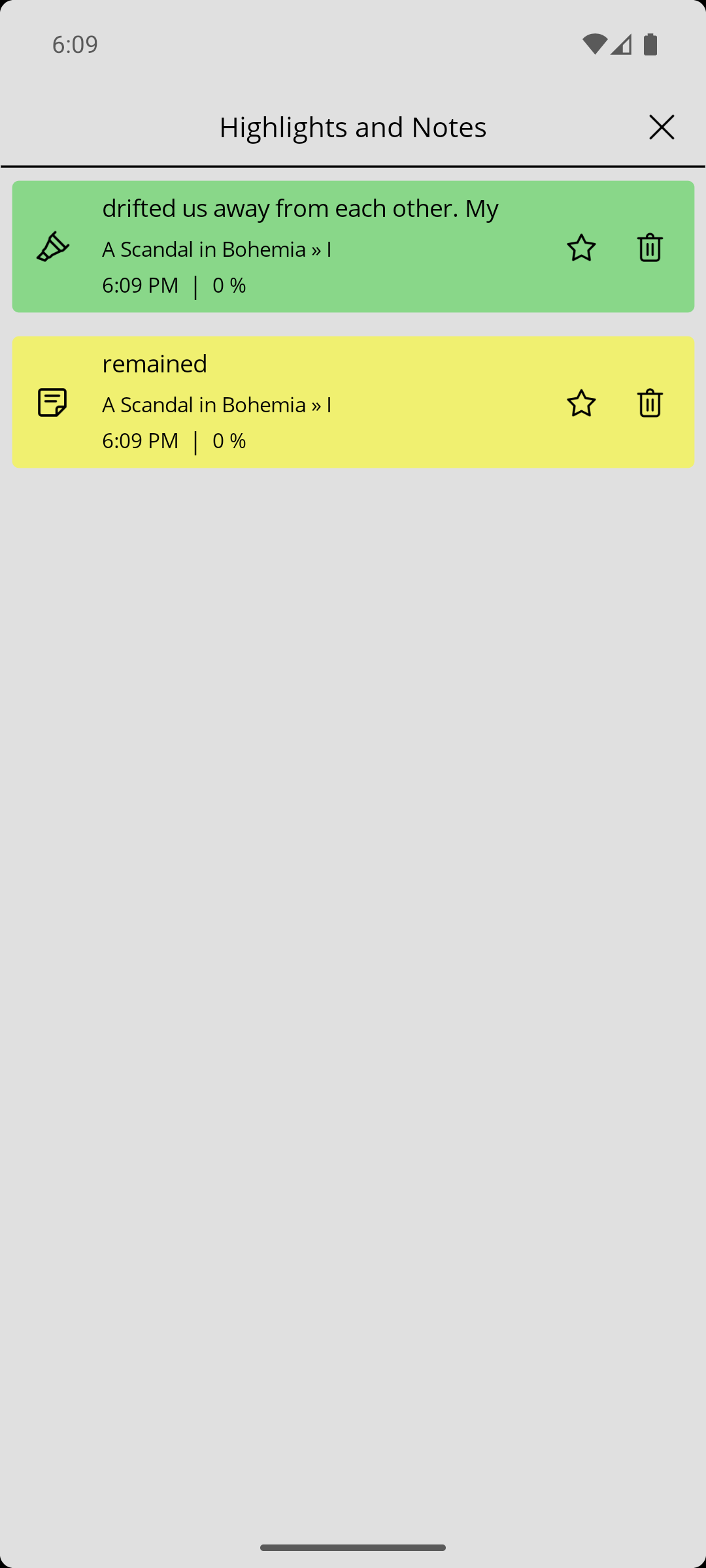
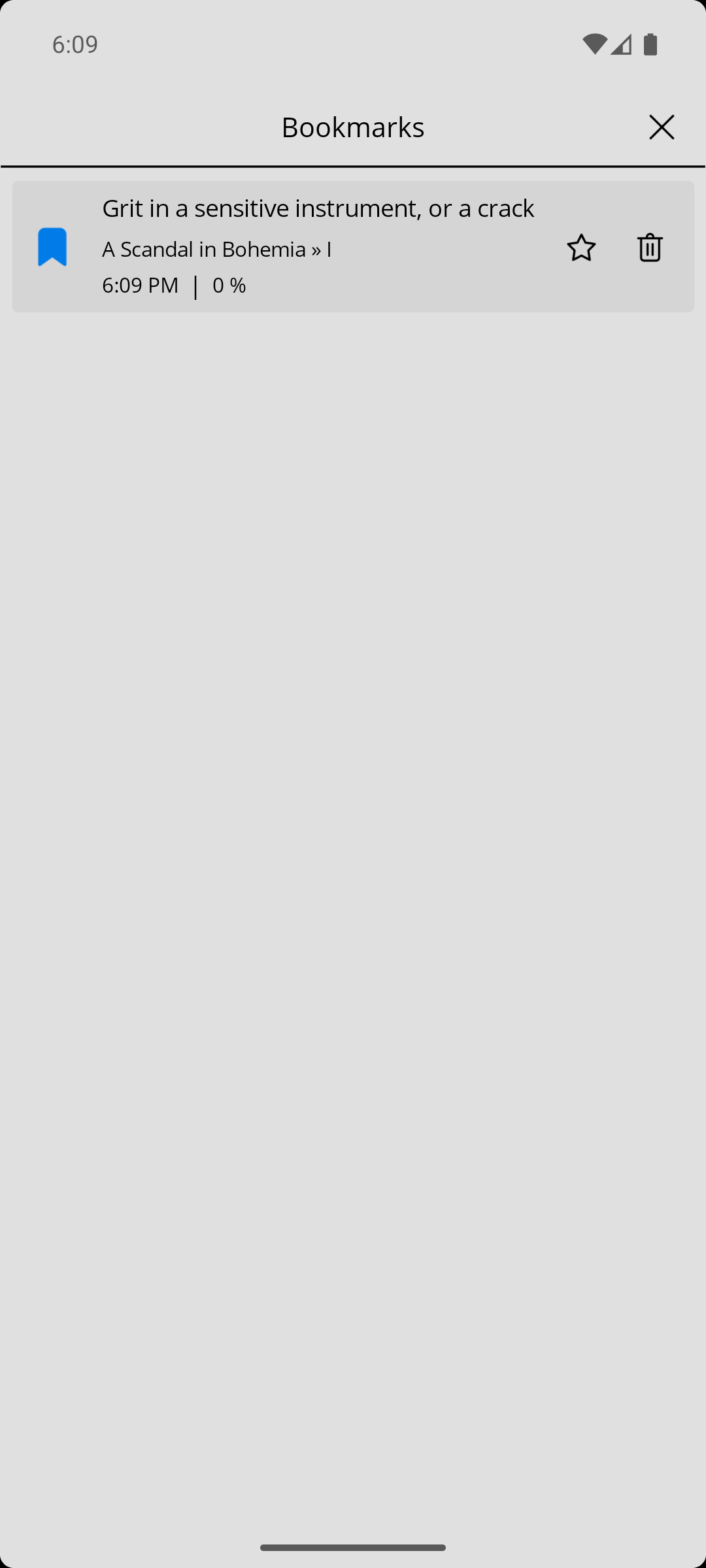
- Add highlight
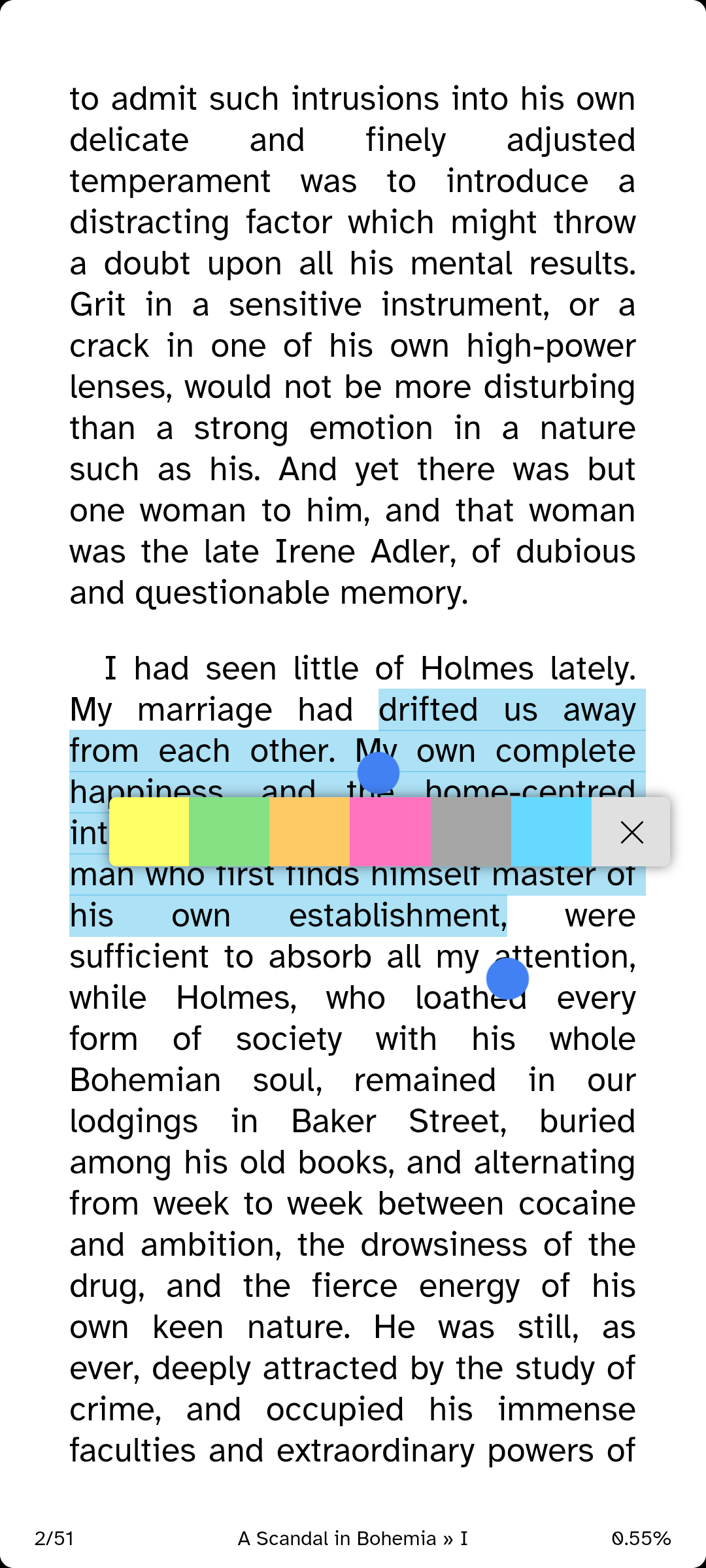
- Using the text selection handle, select the desired text to highlight.
- Select the first icon 'Highlight' in the context menu.
- Choose the desired color to add highlight.
- Add note
- Using the text selection handle, select the desired text to want to add note to.
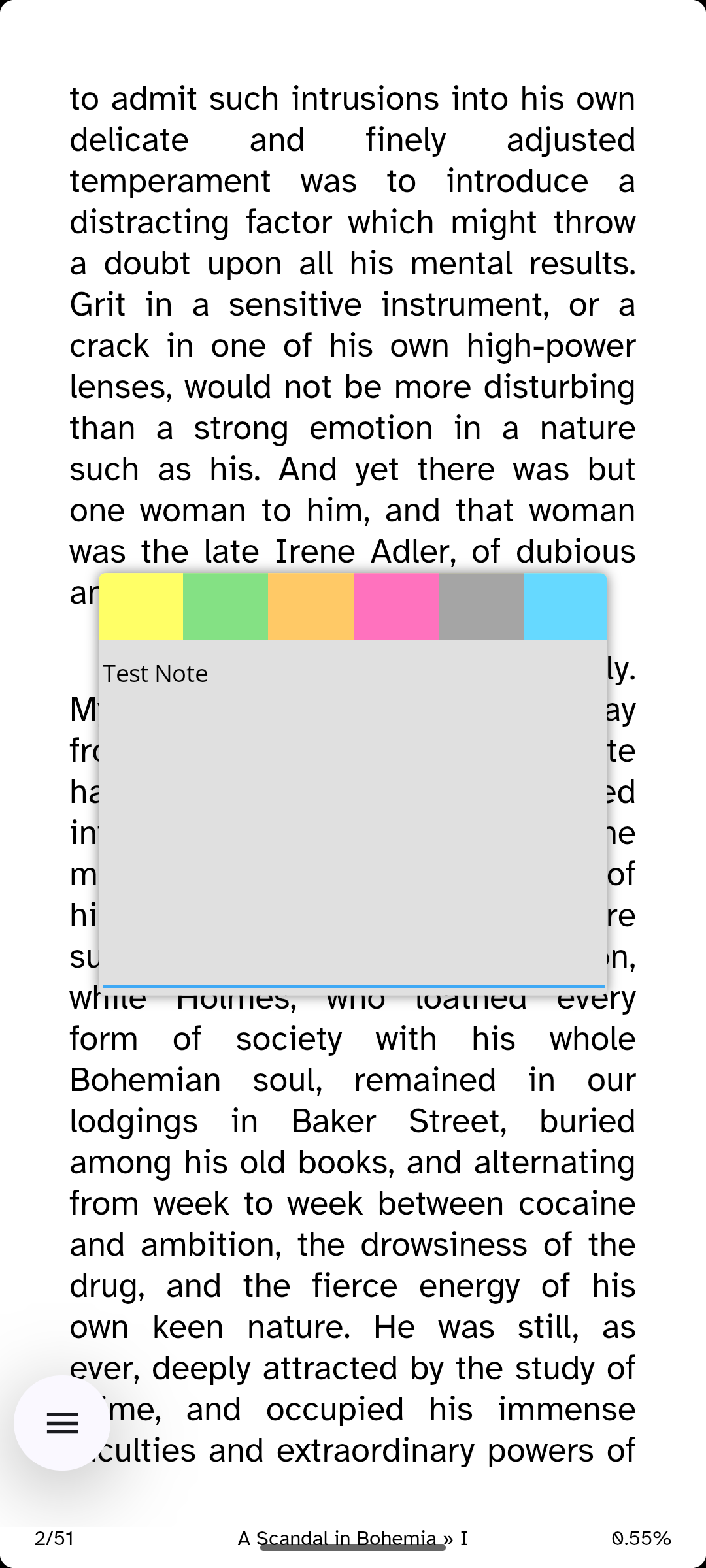
- Select the second icon 'Add Note' in the context menu.
- Add the desired note content.
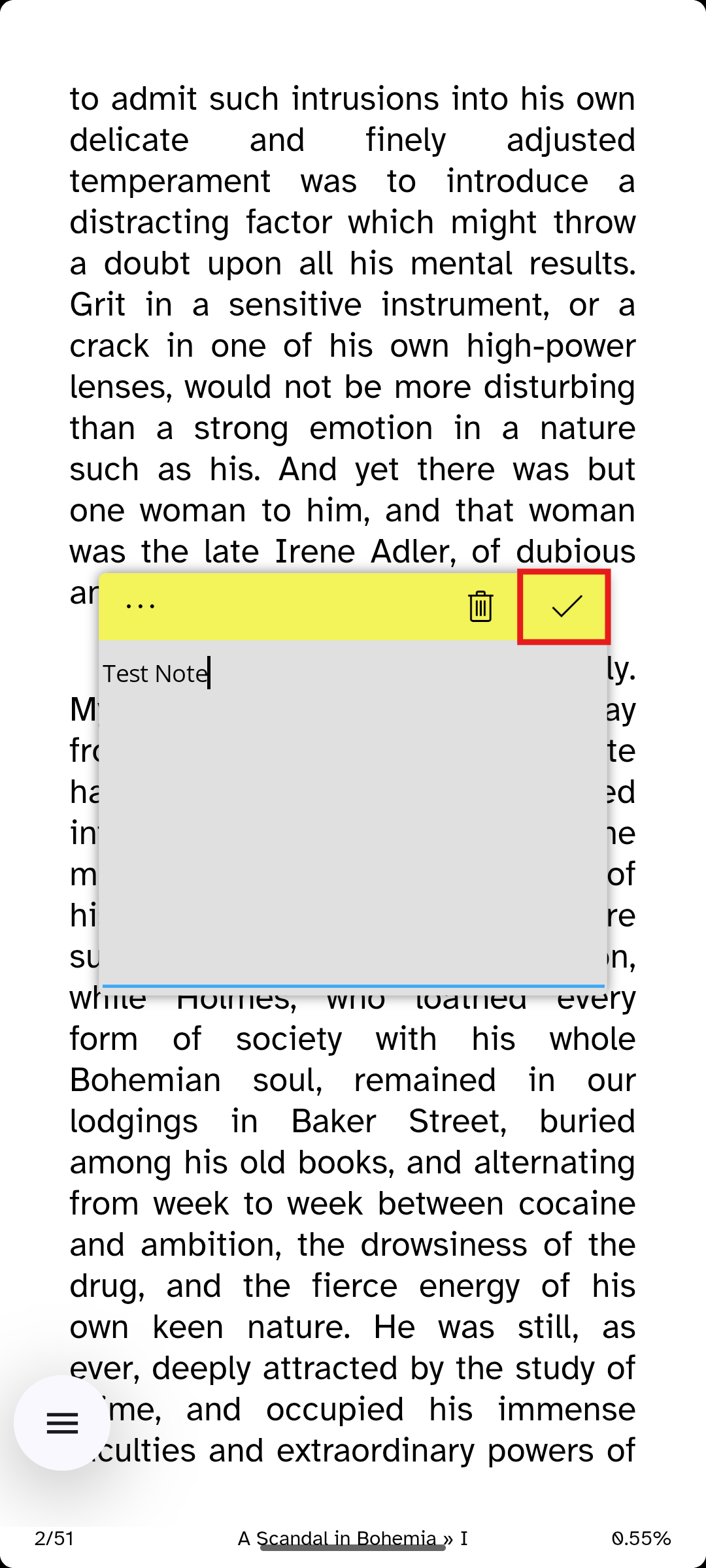
- If you wish to change note color, click on the '3-dot' button to open color pane, and select the desired color of note.
- Click 'check' button to save the note.
- Add bookmark
- Select the third icon 'Add Bookmark' in the context menu to bookmark the current line.
Tap on the center of the screen to bring the reader controls, then tap the desired icon to view the highlights, notes or bookmarks on the book.
› How to use Read Aloud (TTS) feature?
...
› Dictionary always returns 'No definition found'.
› How to change the dictionary?
› How to change the dictionary?
If you are experiencing issues with the current dictionary, try switching to a
different one. The Wiktionary-based dictionary tends to be more reliable in most cases.
Steps to change the dictionary are described with screenshots below.
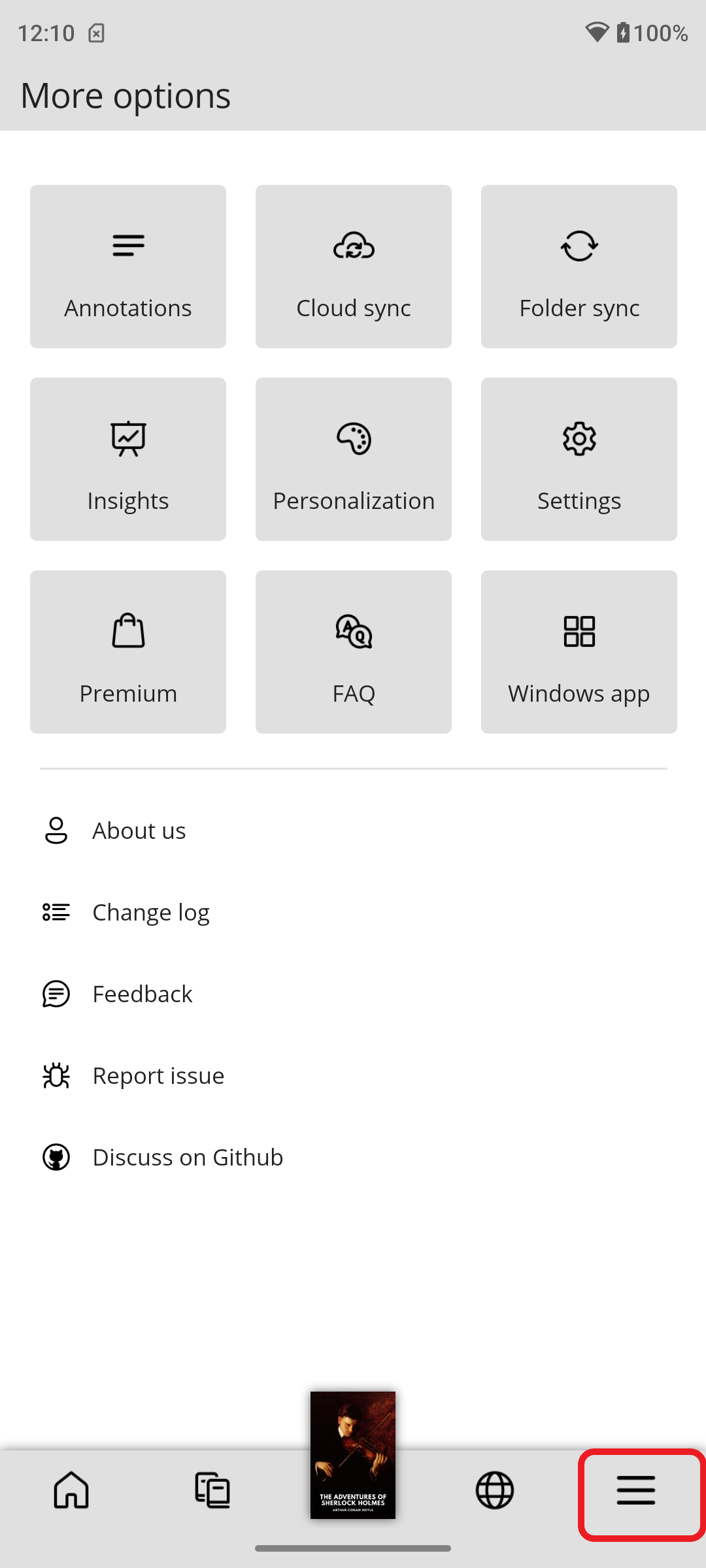
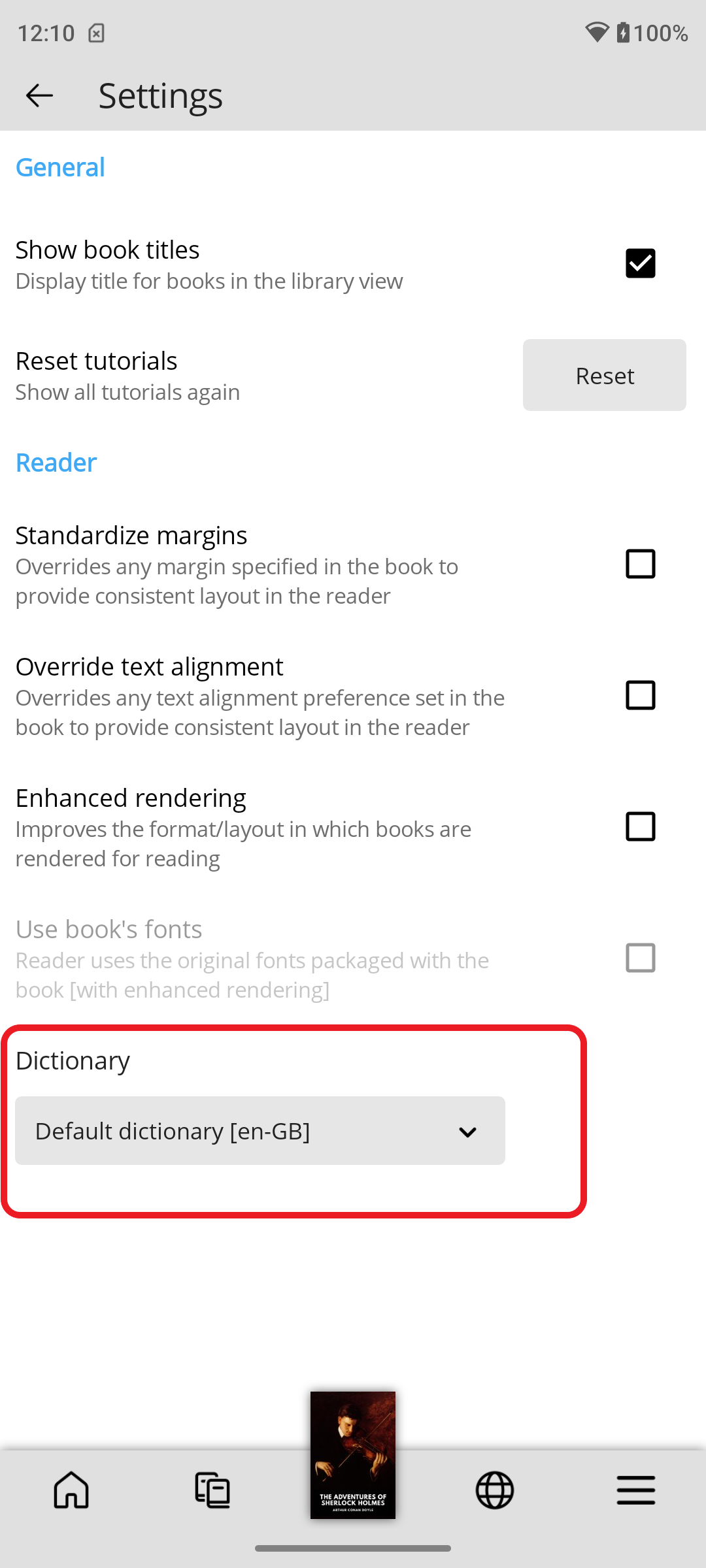
Steps to change the dictionary are described with screenshots below.
› How Cloud Sync works?
› How to enable/configure cloud sync to sync books across Android and Windows devices?
› How to enable/configure cloud sync to sync books across Android and Windows devices?
Cloud Sync is a powerful tool to sync books across devices and platforms. The video below gives a detailed walkthrough of how cloud sync works and how to configure it correctly.
› Why do I have to purchase different premium version for Android and Windows
devices families?
Both Google Play and Microsoft Store enforces in-app purchases to be processed
through their respective platforms. This means we're not permitted to offer a custom single payment
method that works across both platforms. And unfortunately, there's currently no mechanism to sync
purchases between Android and Windows, hence premium version is platform-specific.
We understand this might not be ideal, and we're exploring ways to make this process smoother in the future. For now, if you'd like to use premium features on both Android and Windows, a separate purchase is required for each platform.
That said, once you've made a purchase on Android, it will be available across all your Android devices using the same account. Similarly, one purchase on Windows unlocks premium features across all your Windows devices linked to that account.
We appreciate your understanding and support! If you have any questions or need help, feel free to reach out to our support team.
We understand this might not be ideal, and we're exploring ways to make this process smoother in the future. For now, if you'd like to use premium features on both Android and Windows, a separate purchase is required for each platform.
That said, once you've made a purchase on Android, it will be available across all your Android devices using the same account. Similarly, one purchase on Windows unlocks premium features across all your Windows devices linked to that account.
We appreciate your understanding and support! If you have any questions or need help, feel free to reach out to our support team.
› I purchased premium plan/subscription of Aquile Reader, but after app reinstall the plan shown in the app is Free/Premium Trial. How to restore the premium plan/subscription?
There are a couple of possible reasons why this issue might occur:
- You may have purchased the Premium subscription, but either the subscription was canceled or the latest payment didn’t go through. To check:
- Open the Google Play Store
- Tap the Profile icon in the top-right corner
- Go to Payments & subscriptions → Subscriptions
- Confirm that your Aquile Reader subscription is still active
- If your subscription is active, or you’ve purchased the lifetime Premium plan, the issue might be due to multiple Google accounts signed into your Play Store app. The app may have been associated to a different account than the one used for the purchase. To resolve this:
- Option A: Reinstall via Correct Account
- Uninstall Aquile Reader
- Open the Google Play Store app
- Tap the Profile icon and switch to the account used for the purchase
- Reinstall Aquile Reader
- Open the app and go to the Premium page, your plan should be restored
- Option B: Install via Play Store Website (if switching accounts doesn’t work)
- Uninstall Aquile Reader
- Open a web browser (Chrome/Edge) and go to the Google Play Store website: https://play.google.com/store/apps/details?id=com.optimiliastudios.aquilereader
- Make sure you’re logged in with the account used for the purchase
- Click Install and choose your device
- After installation, open the app and go to the Premium page, your plan should be restored
- Option A: Reinstall via Correct Account